Easy Dictionary
Easily look up words or translate text, support 48+ languages, support Linguee and Youdao dictionary, support OpenAI, DeepL, Google, Bing, Apple, Baidu, Tencent, Volcano, Youdao and Caiyun translation.中文 | English
Raycast Easydict
Easily look up words or translate text

Originally developed by tisfeng, currently maintained by maxchang3.
What is Raycast Easydict?
Raycast Easydict is a simple, easy-to-use, cross-platform dictionary and translation extension for Raycast, supporting quick word lookups and text translation. In addition to traditional dictionary and translation services, it also supports AI-powered translation and lookup, including Raycast AI and OpenAI-compatible endpoints.
Beyond quick lookups, Raycast Easydict also works as a lightweight language-learning tool: save results to review offline, view Chinese character stroke-order diagrams, and export them to Anki for spaced-repetition practice.
💡 Looking for the native macOS app? Try the standalone Easydict App
Features
Look up and translate
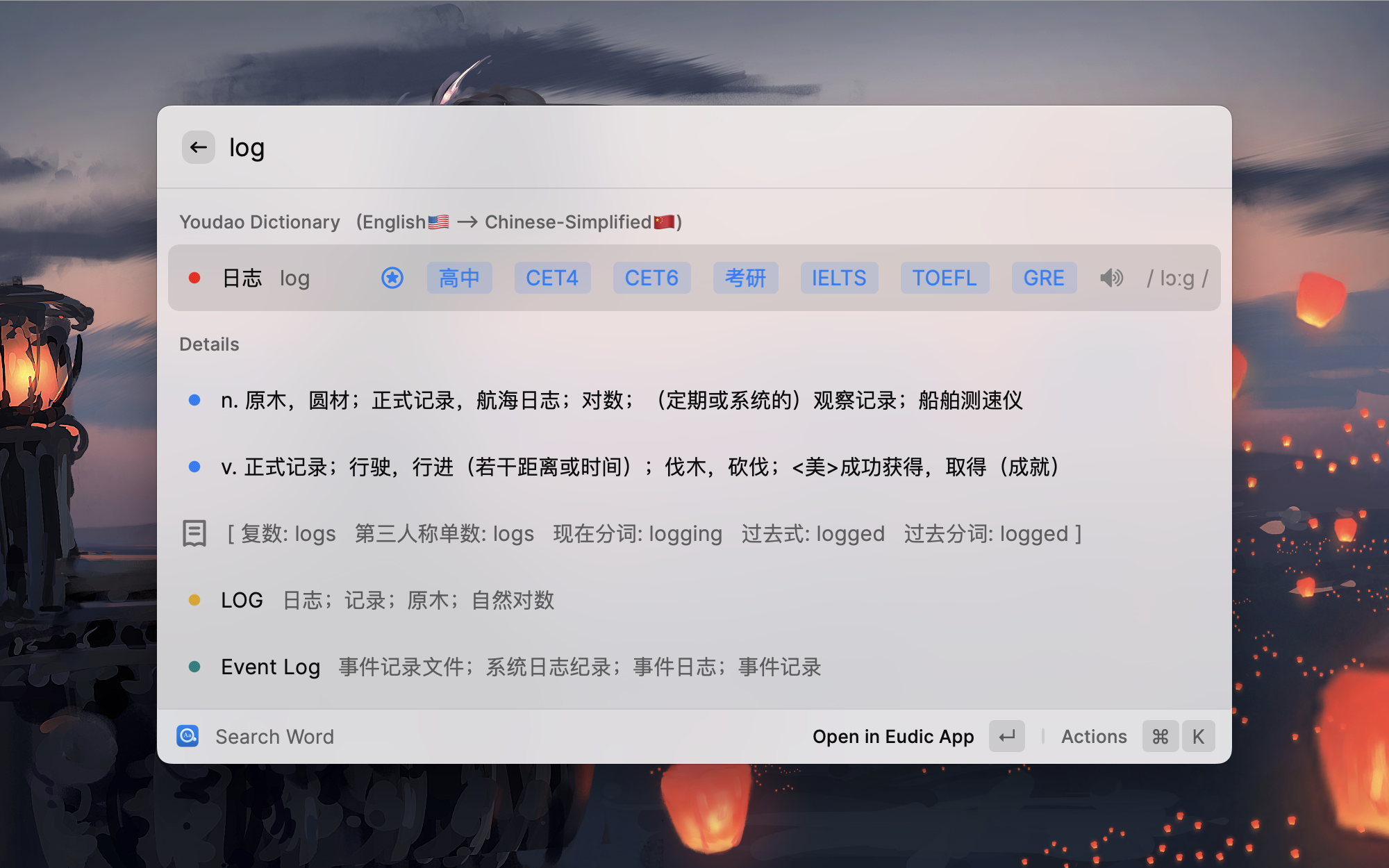
- 📦 Out of the box: look up words and translate text, with automatic language detection and a preferred target language; auto-queries selected text (on by default) and supports OCR screenshot translation.
- 🎨 Rich results: translations, pronunciations, exam coverage, parts of speech, tenses and word forms, web phrases.
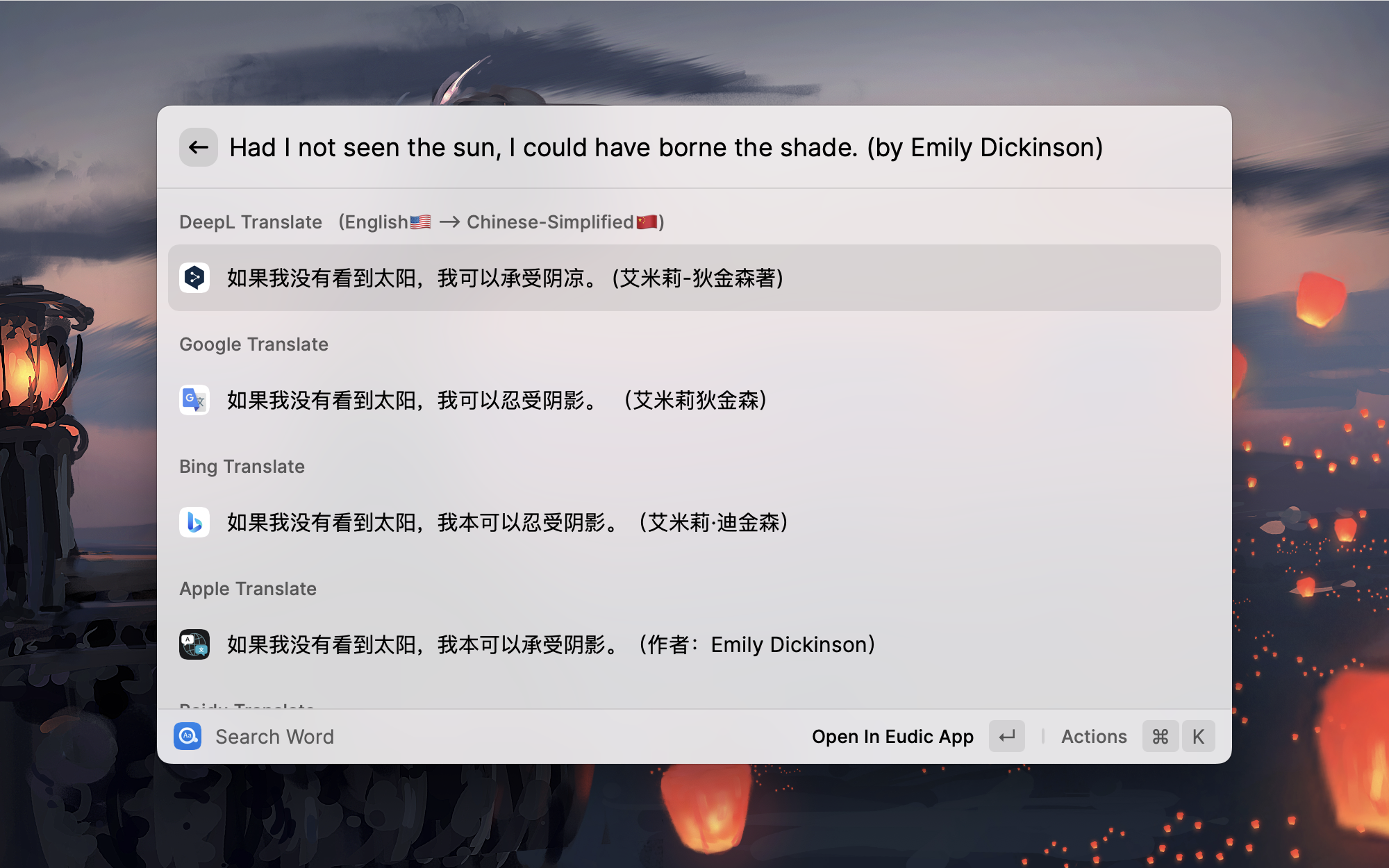
- 🌐 Multiple services: dictionary lookup with Youdao and Linguee; translation with 🍎 Apple System Translation, DeepL, Google, Bing, Baidu, Tencent, Volcano, Youdao, and Caiyun; 🤖 AI translation and lookup with Raycast AI or any OpenAI-compatible endpoint, including a dictionary mode that builds structured entries for words and terms.
- 🔊 Auto pronunciation: plays the word audio automatically after a query, with Youdao TTS for other languages.
Learn and review
- ✍️ Stroke order: view Chinese character stroke-order diagrams to help with memorization and writing.
- ⭐ Favorite Words: save complete results for offline browsing and management.
- 🧠 Anki review: export favorites to Anki for spaced-repetition review.
If you like this extension, please give it a Star ⭐️, thanks!
Screenshots
Manage Providers
Favorite Words & Chinese Stroke Order
Dictionary Details
Youdao Modern Chinese Dict
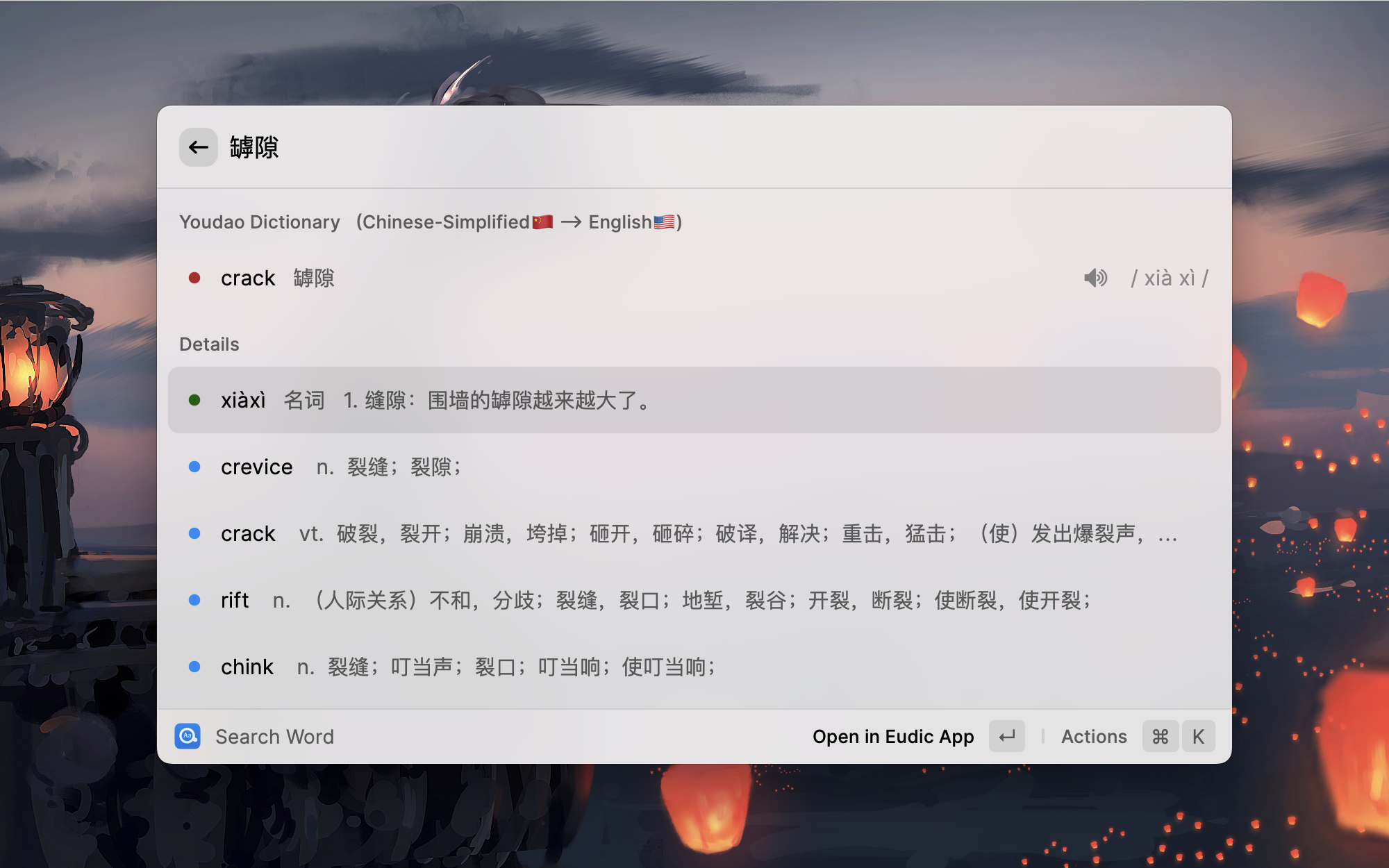
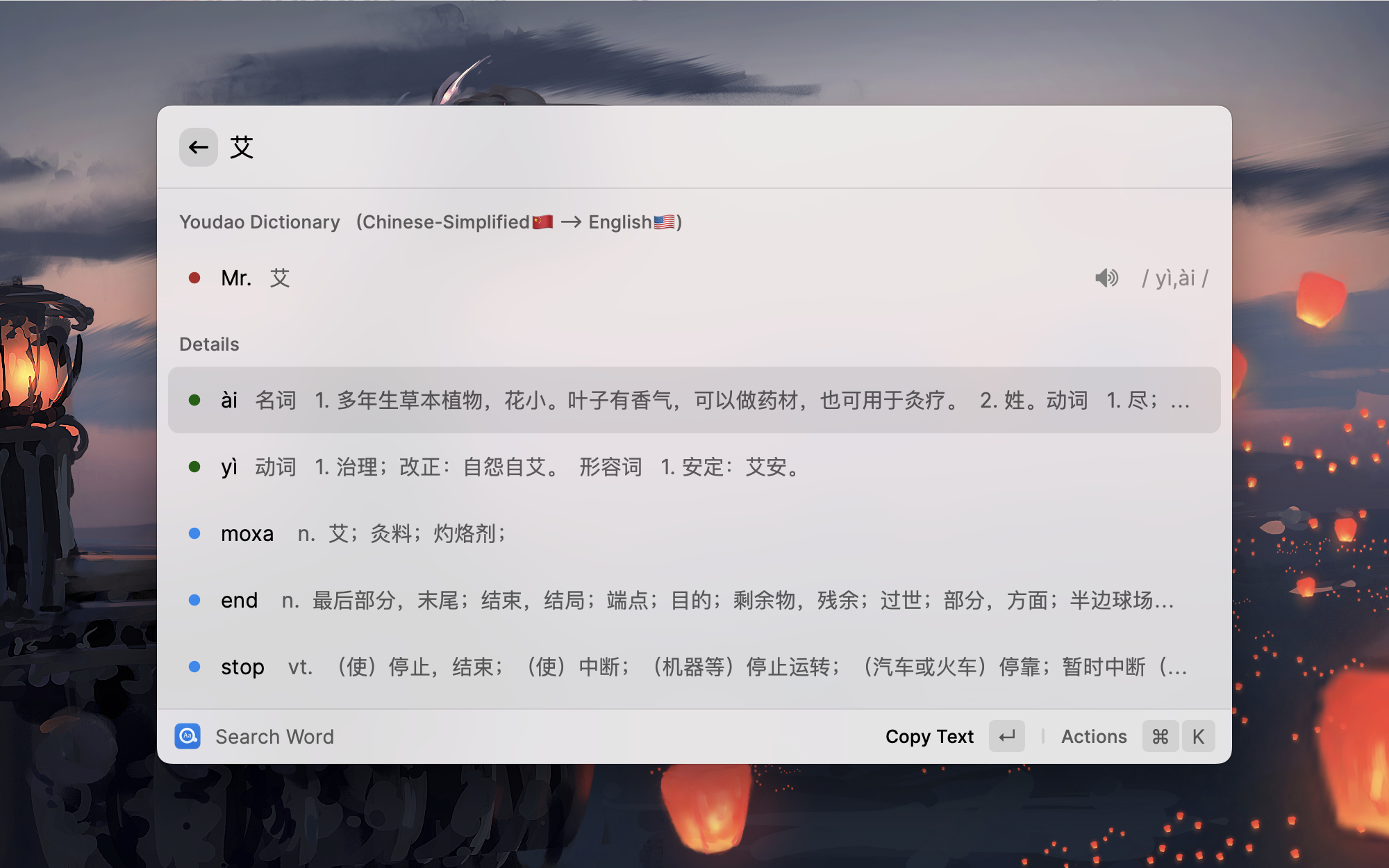
| English <--> Chinese | English <--> French |
|---|---|
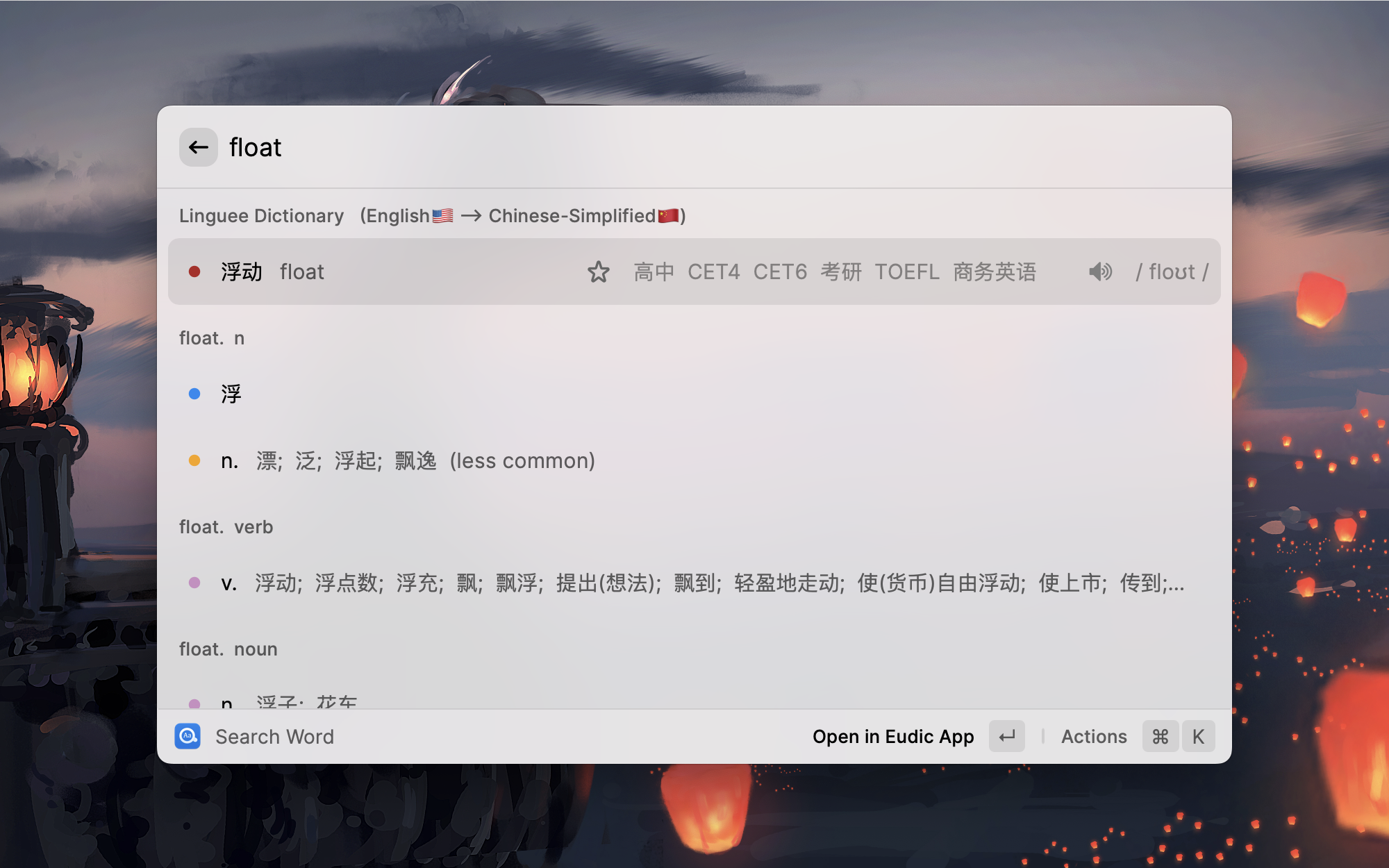 | 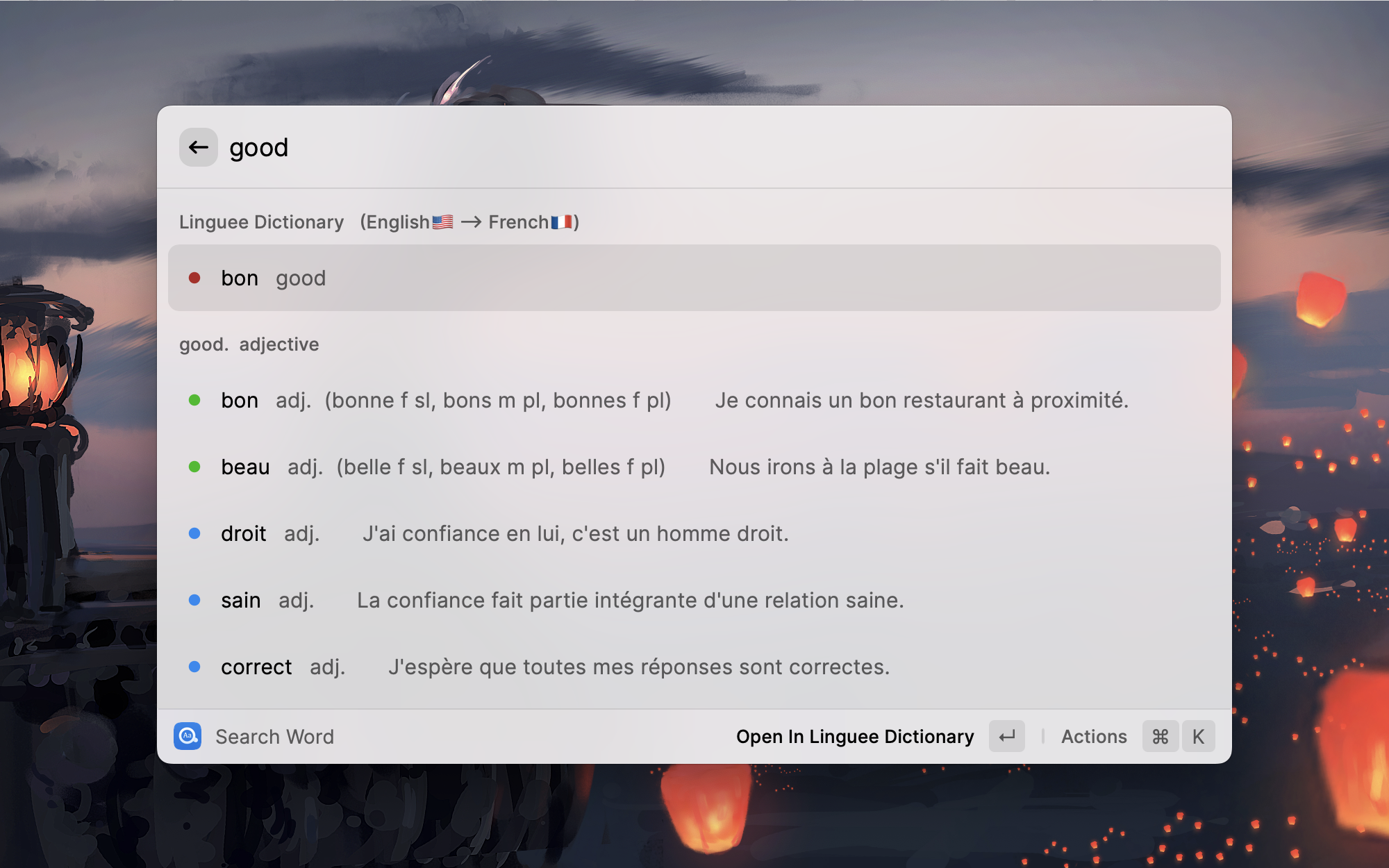 |
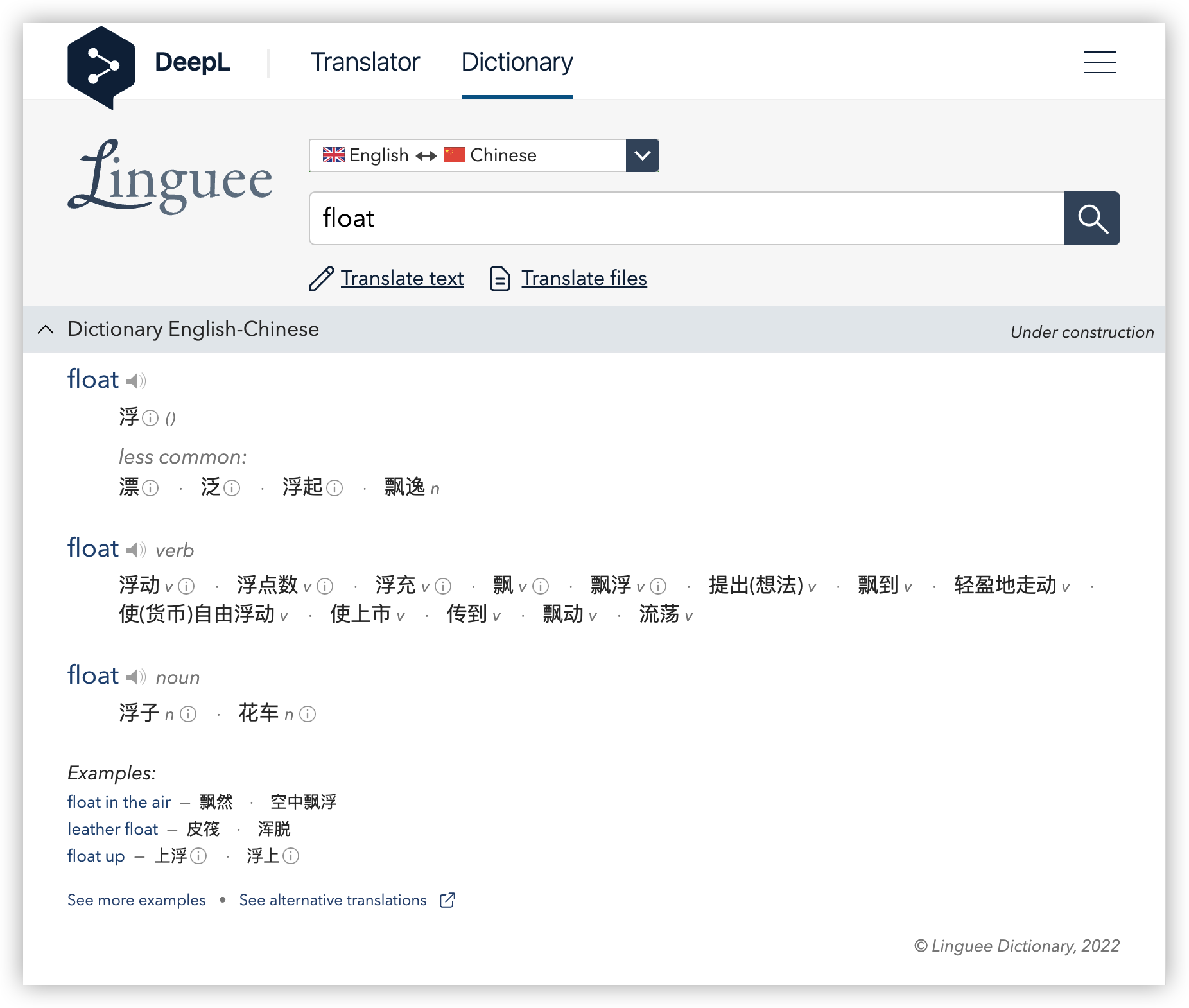 | 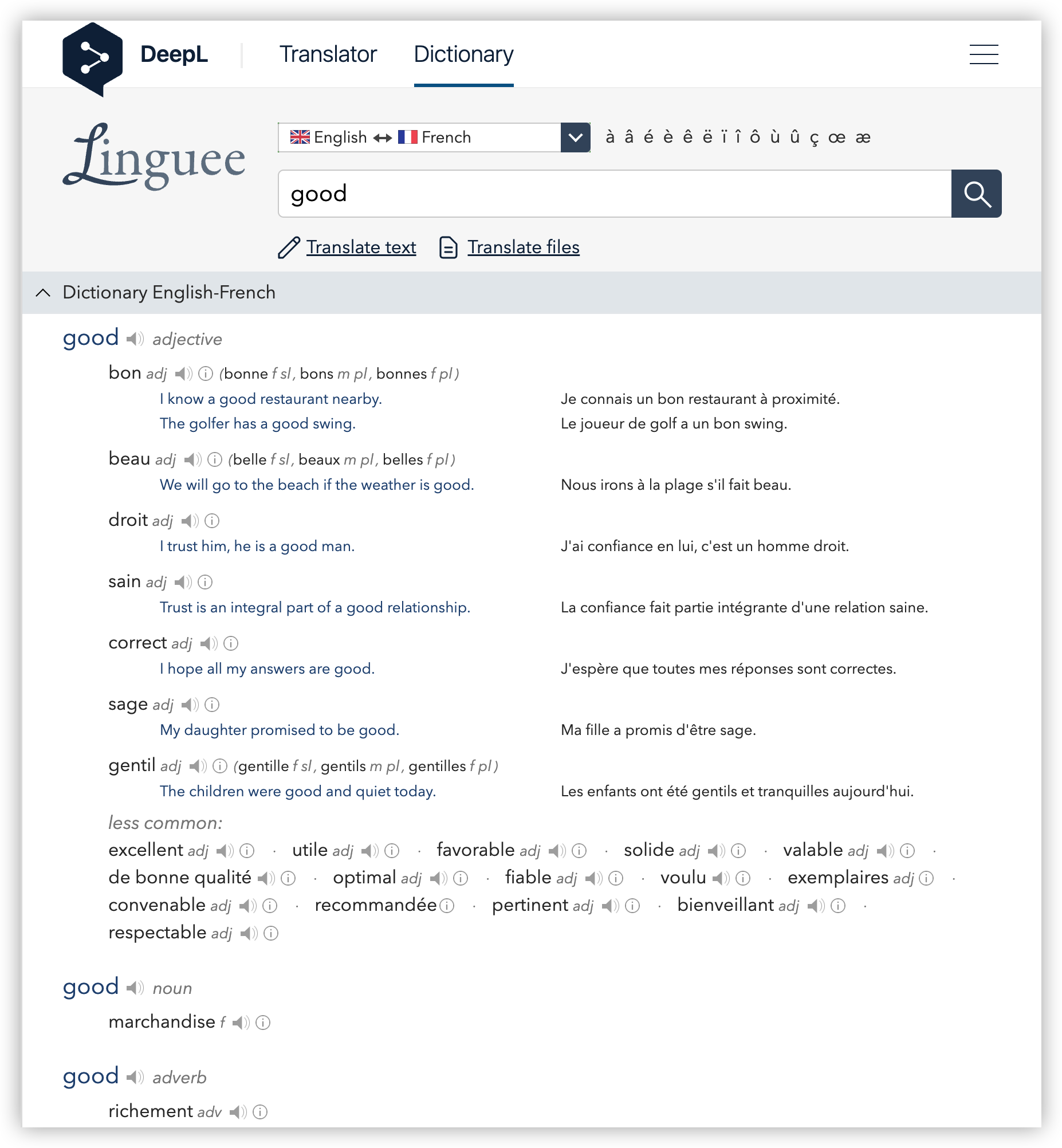 |
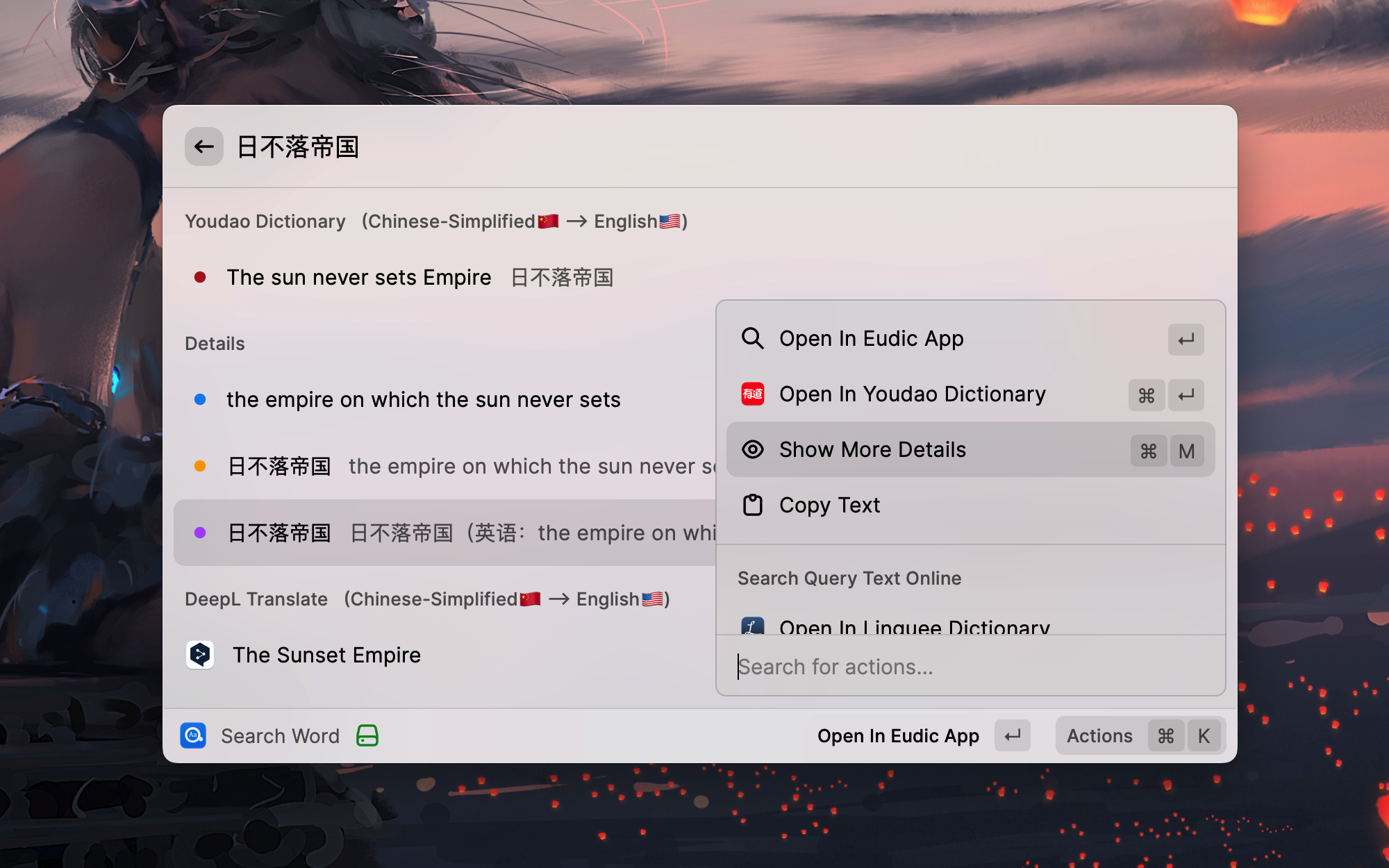
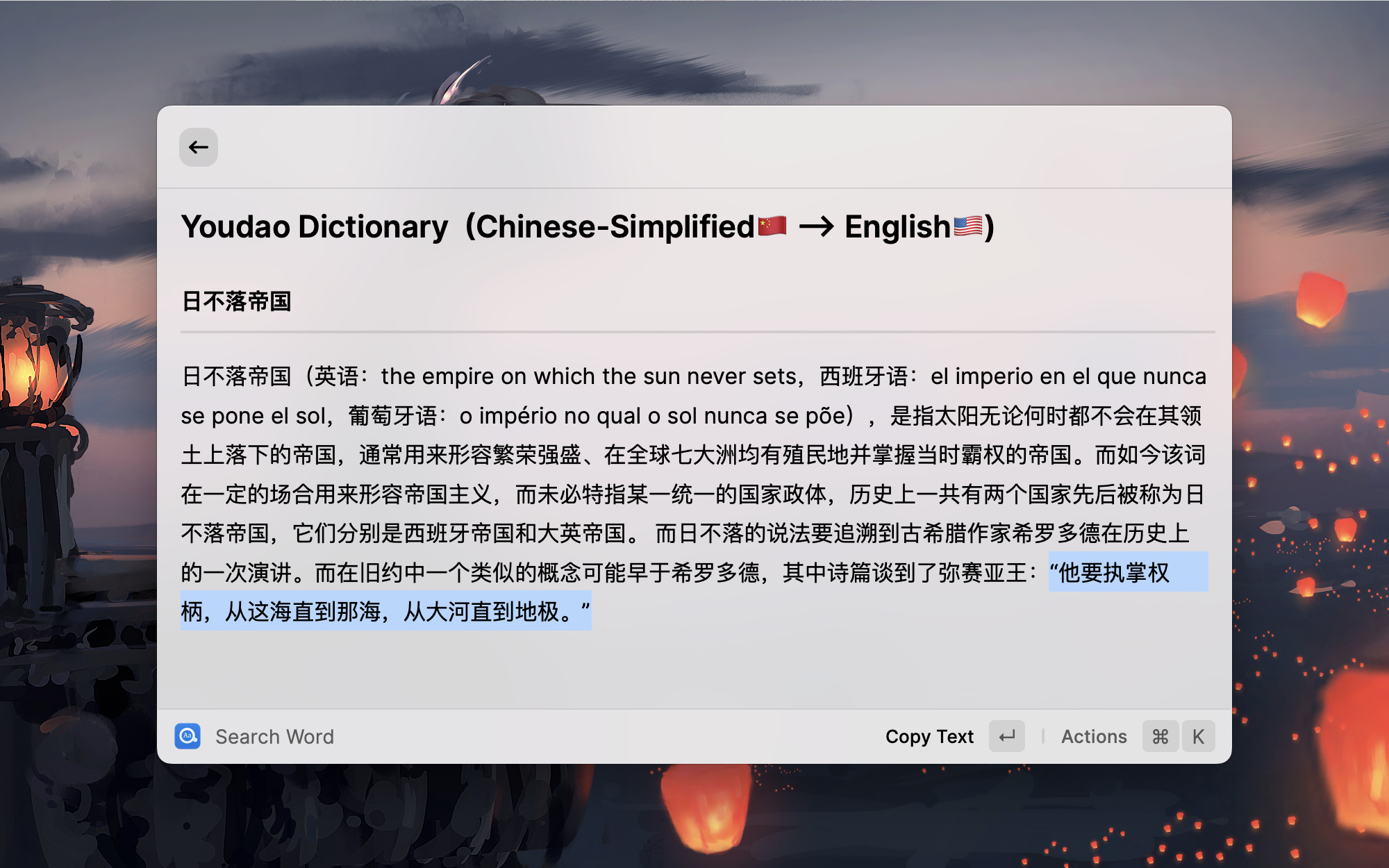
Show More Details (Shortcut Cmd + M)
Translation Results
Installation
This is an extension of Raycast, so you need to install Raycast first. Easydict works on both macOS and Windows.
Raycast is a blazingly fast, totally extendable launcher. Similar to Alfred but it's completely free!
Install from Raycast Store
Manually Install
git clone https://github.com/tisfeng/Raycast-Easydict.git && cd Raycast-Easydict

npm install && npm run dev
Configuration
Easydict works well out of the box. The following options help you customize its behavior.
Manage Providers
Use the Manage Providers command to manage AI providers and to set the order in which all providers are queried.
Providers and order
- Built-in providers are listed here for ordering only; enable and configure them in Extension Settings.
- Reorder any provider with Move Up/Move Down (
Cmd+Option+Up/Downon macOS,Ctrl+Alt+Up/Downon Windows).
AI providers
- AI providers connect to Raycast AI or any OpenAI-compatible endpoint.
- Built-in presets cover common providers: pick yours, add the API key, and adjust the model if needed. If yours is missing, contributions are welcome.
- Word & Term Results chooses Plain Translation or AI-Generated Dictionary Entry. Dictionary mode builds a structured entry for words and terms — pronunciation, senses, examples, and word forms — while other input is translated normally; it can be slower and may need a retry.
Legacy migration
- OpenAI and Gemini settings with an API key migrate automatically the next time you open Search Word or Manage Providers, preserving connection settings, enablement, and order.
- The old settings remain import sources only; Add from Legacy OpenAI/Gemini Settings… copies them into a new provider, initially disabled.
- Migration is per device (each device needs the legacy API key) and offers a retry if it fails.
Preferred Languages
The default preferred languages are simplified Chinese and English. You can change them according to your preferences.
Preference language has two main functions:
First, it improves the accuracy of automatic detection of input text language.
Preference language will be given priority in order during automatic detection. This is because some words may represent multiple languages at the same time, and the automatic detection program cannot work as expected. In most cases, the automatic detection of input text is very useful, except for very few special cases. For example, the English word heel will be automatically recognized into Dutch by Youdao translation, and then the translation results are not what we expect. At this time, if your Easydict preferred language contains English, it will be recognized into English first and translated correctly.
Second, it is used to confirm your target translation language.
For example, if you input a sentence arbitrarily, it will be translated into the first preferred language. If the automatically recognized language is the same as your first preferred language, it will be automatically translated into the second preferred language.
Select Target Language
Specify the target language. This option is turned off by default.
By default, the extension will automatically select the preferred language as the target translation language. However, sometimes if you want to manually specify a language as the target language, you can turn on this option in the preferences and then you can temporarily select another target language in the action panel.
Automatic Query Selected Text
Automatic query selected text of the frontmost application, this option is turned on by default.
In order to better match the automatic selected text feature, it is a good idea to set a hotkey for Easydict, such as Cmd + E, so that after selected the text, you can directly query words through the hotkey, which is very smooth and elegant.
Automatic Play Query Word Pronunciation
Automatically play the word audio after querying the word, turned on by default.
Note that when this option is started, the voice will be played only when the query is judged to be is_Word and in English, e.g. good, look for, etc. Use Read Query Text to play other queries manually.
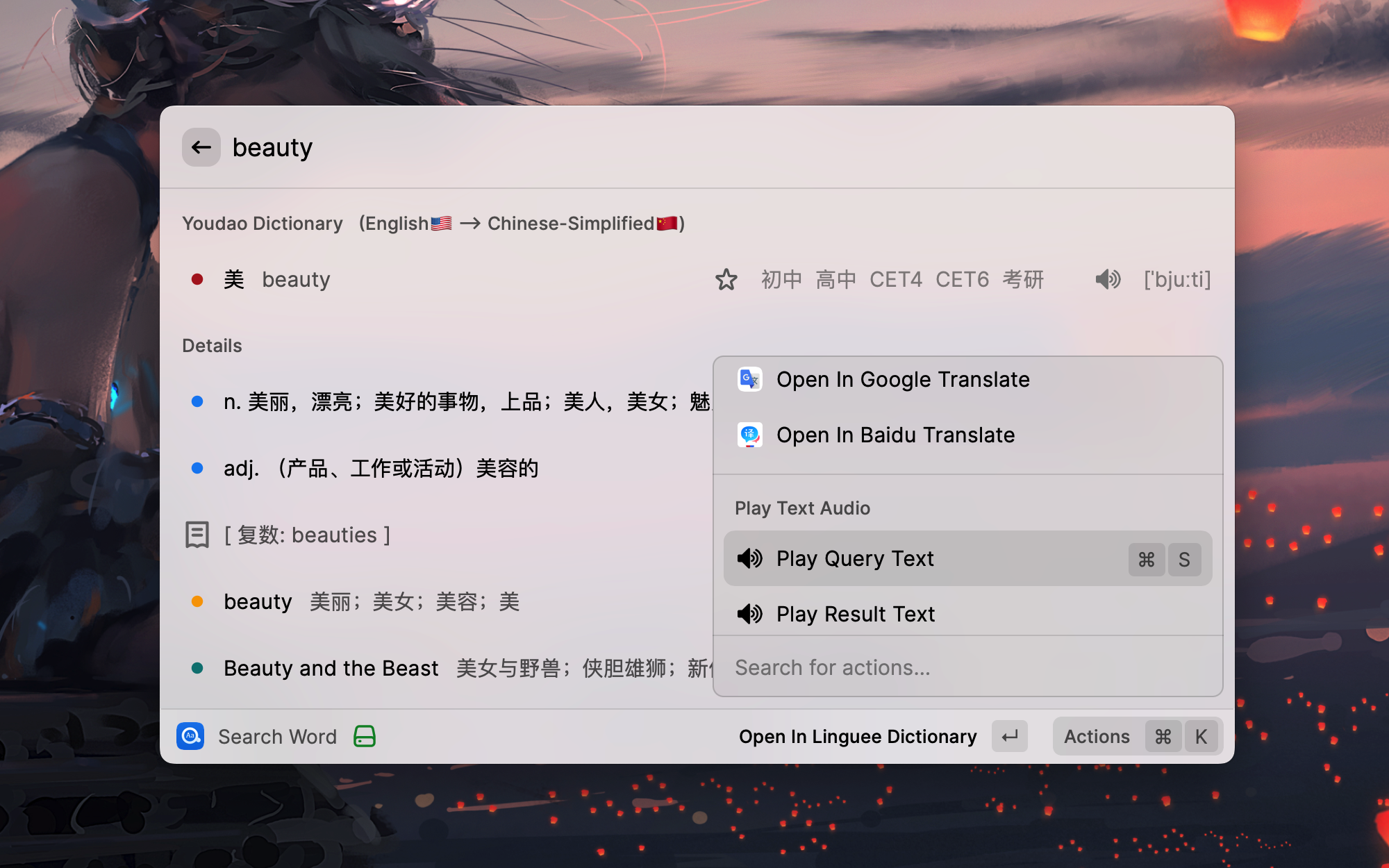
The content of playing voice: English words are pronounced by the online Youdao dictionary first, and other words are pronounced by the TTS service of Youdao translation. For long text playback, use the say command.
Use these shortcuts from a query result:
| Action | macOS | Windows |
|---|---|---|
| Read Query Text | Cmd+R | Ctrl+R |
| Read Result Text | Cmd+Shift+R | Ctrl+Shift+R |
| Requery All Services | Cmd+Option+R | Ctrl+Alt+R |
Query Cache
Open Preferences from a query result's action menu to configure caching. Query Cache controls completed dictionary and machine translation results; AI Query Cache controls completed AI translations and dictionary entries. Both default to Off. Choose Words Only to cache input recognized as a word or term, or All Text to also cache sentences and longer text.
Built-in dictionary results are retained for up to 7 days; machine translations and AI results for up to 24 hours. Confirmed language-detection results are also cached for up to 24 hours when either setting permits caching the input. There is no separate language-detection cache setting; it is disabled when both settings are Off.
Cached results show a clock indicator. Use these actions to manage them:
- Requery All Services: Query the enabled services again with fresh language detection, bypassing the cache.
- Regenerate AI Result: Generate a fresh result from the selected AI provider, leaving other providers' results in place. This also works when AI caching is Off.
- Clear Query Cache: Remove cached dictionary, translation, AI, and language-detection results.
Fresh results from requerying or regeneration replace the cached result when the corresponding cache mode allows caching that input.
Favorite Storage and Recovery
Favorites remain available offline after upgrading. Older versions only see the snapshot from before the upgrade, and edits made in either version do not sync between formats.
If saved favorites cannot be read, Favorite Words keeps the original data and blocks changes. Use Export Original Data to save a local JSON backup, or Restore from Backup to select a valid backup; Restore Previous-Version Favorites recovers the retained collection when the current data is damaged. The current data is backed up before either restore. Backups are stored locally in the extension support directory, and Open Backup Folder reveals them. Data from a newer version stays read-only: export it and open it with a compatible Easydict version.
Anki Preferences
These preferences control how Favorite Words are sent to Anki.
- Add Favorites to Anki Automatically: also add each new favorite to Anki (off by default).
- Anki Deck: the deck that receives the cards (default
Easydict); the deck and anEasydictnote type are created on first use. - AnkiConnect URL: the address of the AnkiConnect add-on (default
http://127.0.0.1:8765); change it when AnkiConnect listens on a custom port or on another machine.
System Proxy
Easydict supports system proxy. To use it, turn on Use System Proxy Settings in the Raycast extension settings. When enabled, all network requests will be sent through the system proxy. This is useful for services that require a proxy (e.g., Google Translate in China) or for counter IP blocking (some services such as Linguee have frequency restrictions on IPs). Enabling proxy may slow down response time, so please enable it only when needed.
Windows OCR Language
On Windows, OCR Translate recognizes text with the built-in Windows OCR engine and the OCR language packs installed in Windows. Run Select OCR Language to see the installed languages and pin one; the default Automatic (Windows profile) creates the engine from the first OCR-capable language in your Windows language settings. Install more language packs under Windows Settings → Time & Language → Language & Region. This command does not affect macOS, where recognition uses Apple Vision and detects the language automatically.
Integrations
Anki
Favorite Words can be sent to Anki for spaced-repetition review through the AnkiConnect add-on (code 2055492159).
- Add cards: Keep Anki open, then use Add to Anki (
Cmd + Option + A,Ctrl + Shift + Aon Windows) or Add All to Anki from a favorite's action menu. If Anki is not running, the word is still saved to Favorites and can be sent later with Add All to Anki. - Cards: The front shows the word, phonetic, and pronunciation (the saved audio is downloaded into Anki and plays automatically); the back shows translations and dictionary explanations. Words already in the deck are skipped, so Add All to Anki can be run again after saving new favorites. Removing a favorite does not delete its Anki card, so review history is kept.
The deck, the AnkiConnect address, and automatic adding are configured in Anki Preferences.
PopClip
You need to install PopClip first, then add a shortcut key for Easydict, such as Cmd + E, then you can open Easydict quickly with PopClip!
Usage: Select the following code block, PopClip will show "Install Easydict", just click it.
  # popclip
  name: Easydict
  icon: search E
  key combo: command E
Ref: https://github.com/pilotmoon/PopClip-Extensions#extension-snippets-examples
Eudic
If the Eudic dictionary app is installed, Open in Eudic App opens the queried word in it (macOS).
Supported Languages
Currently we support 49 languages: Simplified Chinese, Traditional Chinese, English, Japanese, Korean, French, Spanish, Portuguese, Italian, German, Russian, Arabic, Swedish, Romanian, Thai, Slovak, Dutch, Hungarian, Greek, Danish, Finnish, Polish, Czech, Turkish, Lithuanian, Latvian, Ukrainian, Bulgarian, Indonesian, Malay, Slovenian, Estonian, Vietnamese, Persian, Hindi, Telugu, Tamil, Urdu, Filipino, Khmer, Lao, Bangla, Burmese, Norwegian, Georgian, Serbian, Croatian, Mongolian, Hebrew.
Language Detection
Easydict uses four remote language detection services: Bing, Baidu, Tencent, and Volcano. Franc provides the local fallback.
Bing and Baidu language detection are enabled by default. Tencent and Volcano can be enabled independently in preferences and require their corresponding credentials. In general, enabling more detection services can improve accuracy and response time.
Details of the languages supported by each language detection service are as follows:
| Languages | Bing | Baidu | Volcano | Tencent |
|---|---|---|---|---|
| Simplified Chinese | ✅ | ✅ | ✅ | ✅ |
| Traditional Chinese | ✅ | ✅ | ✅ | ❌ |
| English | ✅ | ✅ | ✅ | ✅ |
| Japanese | ✅ | ✅ | ✅ | ✅ |
| Korean | ✅ | ✅ | ✅ | ✅ |
| French | ✅ | ✅ | ✅ | ✅ |
| Spanish | ✅ | ✅ | ✅ | ✅ |
| Portuguese | ✅ | ✅ | ✅ | ✅ |
| Italian | ✅ | ✅ | ✅ | ✅ |
| German | ✅ | ✅ | ✅ | ✅ |
| Russian | ✅ | ✅ | ✅ | ✅ |
| Arabic | ✅ | ✅ | ✅ | ❌ |
| Swedish | ✅ | ✅ | ✅ | ❌ |
| Romanian | ✅ | ✅ | ✅ | ❌ |
| Thai | ✅ | ✅ | ✅ | ✅ |
| Slovak | ✅ | ✅ | ✅ | ❌ |
| Dutch | ✅ | ✅ | ✅ | ❌ |
| Hungarian | ✅ | ✅ | ✅ | ❌ |
| Greek | ✅ | ✅ | ✅ | ❌ |
| Danish | ✅ | ✅ | ✅ | ❌ |
| Finnish | ✅ | ✅ | ✅ | ❌ |
| Polish | ✅ | ✅ | ✅ | ❌ |
| Czech | ✅ | ✅ | ✅ | ❌ |
| Turkish | ✅ | ✅ | ✅ | ✅ |
| Lithuanian | ✅ | ✅ | ✅ | ❌ |
| Latvian | ✅ | ✅ | ✅ | ❌ |
| Ukrainian | ✅ | ✅ | ✅ | ❌ |
| Bulgarian | ✅ | ✅ | ✅ | ❌ |
| Indonesian | ✅ | ✅ | ✅ | ✅ |
| Malay | ✅ | ✅ | ✅ | ✅ |
| Slovenian | ✅ | ✅ | ✅ | ❌ |
| Estonian | ✅ | ✅ | ✅ | ❌ |
| Vietnamese | ✅ | ✅ | ✅ | ✅ |
| Persian | ✅ | ✅ | ✅ | ❌ |
| Hindi | ✅ | ✅ | ✅ | ❌ |
| Telugu | ✅ | ✅ | ✅ | ❌ |
| Tamil | ✅ | ✅ | ✅ | ❌ |
| Urdu | ✅ | ✅ | ✅ | ❌ |
| Filipino | ✅ | ✅ | ✅ | ❌ |
| Khmer | ✅ | ✅ | ✅ | ❌ |
| Lao | ✅ | ✅ | ✅ | ❌ |
| Bangla | ✅ | ✅ | ✅ | ❌ |
| Burmese | ✅ | ✅ | ✅ | ❌ |
| Norwegian | ✅ | ✅ | ✅ | ❌ |
| Georgian | ✅ | ✅ | ✅ | ❌ |
| Serbian | ✅ | ✅ | ✅ | ❌ |
| Croatian | ✅ | ✅ | ✅ | ❌ |
| Mongolian | ✅ | ✅ | ✅ | ❌ |
| Hebrew | ✅ | ✅ | ✅ | ❌ |
Dictionary
Youdao Dictionary
Support 5 languages, (Chinese), English, French, Japanese, Korean.
Linguee Dictionary
Support 19 languages, (Chinese, Japanese, Russian), English, French, Spanish, Portuguese, Italian, German, Swedish, Romanian, Slovak, Dutch, Hungarian, Greek, Danish, Finnish, Polish, Czech.
Translation
Currently, we support OpenAI, Gemini, DeepL, Google, Bing, 🍎 Apple, Baidu, Tencent, Volcano, Youdao, and Caiyun translation, total 11 translation services.
Google and DeepL translations support system proxy. To enable proxy, turn on Use System Proxy Settings in the Raycast extension settings. (DeepL works without a proxy, but sometimes requests time out)
Note ⚠️: Google Translate China site (translate.google.cn) is currently unavailable. You can only use the international version (translate.google.com), so you may need to enable a proxy to use Google Translate.
🍎 Apple System Translation requires a one-time setup with the Shortcuts app; see How to use macOS Apple System Translation in Easydict?.
Supported translation languages:
| Languages | Youdao | DeepL | Bing | 🍎 Apple | Baidu | Volcano | Tencent | Caiyun | |
|---|---|---|---|---|---|---|---|---|---|
| Simplified Chinese | ✅ | ✅ | ✅ | ✅ | ✅ | ✅ | ✅ | ✅ | ✅ |
| Traditional Chinese | ✅ | ✅ | ✅ | ✅ | ✅ | ✅ | ✅ | ✅ | ❌ |
| English | ✅ | ✅ | ✅ | ✅ | ✅ | ✅ | ✅ | ✅ | ✅ |
| Japanese | ✅ | ✅ | ✅ | ✅ | ✅ | ✅ | ✅ | ✅ | ✅ |
| Korean | ✅ | ✅ | ✅ | ✅ | ✅ | ✅ | ✅ | ✅ | ❌ |
| French | ✅ | ✅ | ✅ | ✅ | ✅ | ✅ | ✅ | ✅ | ❌ |
| Spanish | ✅ | ✅ | ✅ | ✅ | ✅ | ✅ | ✅ | ✅ | ❌ |
| Portuguese | ✅ | ✅ | ✅ | ✅ | ✅ | ✅ | ✅ | ✅ | ❌ |
| Italian | ✅ | ✅ | ✅ | ✅ | ✅ | ✅ | ✅ | ✅ | ❌ |
| German | ✅ | ✅ | ✅ | ✅ | ✅ | ✅ | ✅ | ✅ | ❌ |
| Russian | ✅ | ✅ | ✅ | ✅ | ✅ | ✅ | ✅ | ✅ | ❌ |
| Arabic | ✅ | ✅ | ✅ | ✅ | ✅ | ✅ | ✅ | ✅ | ❌ |
| Swedish | ✅ | ✅ | ✅ | ✅ | ❌ | ✅ | ✅ | ❌ | ❌ |
| Romanian | ✅ | ✅ | ✅ | ✅ | ❌ | ✅ | ✅ | ❌ | ❌ |
| Thai | ✅ | ❌ | ✅ | ✅ | ✅ | ✅ | ✅ | ✅ | ❌ |
| Slovak | ✅ | ✅ | ✅ | ✅ | ❌ | ✅ | ✅ | ❌ | ❌ |
| Dutch | ✅ | ✅ | ✅ | ✅ | ✅ | ✅ | ✅ | ❌ | ❌ |
| Hungarian | ✅ | ✅ | ✅ | ✅ | ❌ | ✅ | ✅ | ❌ | ❌ |
| Greek | ✅ | ✅ | ✅ | ✅ | ❌ | ✅ | ✅ | ❌ | ❌ |
| Danish | ✅ | ✅ | ✅ | ✅ | ❌ | ✅ | ✅ | ❌ | ❌ |
| Finnish | ✅ | ✅ | ✅ | ✅ | ❌ | ✅ | ✅ | ❌ | ❌ |
| Polish | ✅ | ✅ | ✅ | ✅ | ✅ | ✅ | ✅ | ❌ | ❌ |
| Czech | ✅ | ✅ | ✅ | ✅ | ❌ | ✅ | ✅ | ❌ | ❌ |
| Turkish | ✅ | ✅ | ✅ | ✅ | ✅ | ✅ | ✅ | ✅ | ❌ |
| Lithuanian | ✅ | ✅ | ✅ | ✅ | ❌ | ✅ | ✅ | ❌ | ❌ |
| Latvian | ✅ | ✅ | ✅ | ✅ | ❌ | ✅ | ✅ | ❌ | ❌ |
| Ukrainian | ✅ | ✅ | ✅ | ✅ | ✅ | ✅ | ✅ | ❌ | ❌ |
| Bulgarian | ✅ | ✅ | ✅ | ✅ | ❌ | ✅ | ✅ | ❌ | ❌ |
| Indonesian | ✅ | ✅ | ✅ | ✅ | ✅ | ✅ | ✅ | ✅ | ❌ |
| Malay | ✅ | ❌ | ✅ | ✅ | ❌ | ✅ | ✅ | ✅ | ❌ |
| Slovenian | ✅ | ✅ | ✅ | ✅ | ❌ | ✅ | ✅ | ❌ | ❌ |
| Estonian | ✅ | ✅ | ✅ | ✅ | ❌ | ✅ | ✅ | ❌ | ❌ |
| Vietnamese | ✅ | ❌ | ✅ | ✅ | ✅ | ✅ | ✅ | ✅ | ❌ |
| Persian | ✅ | ❌ | ✅ | ✅ | ❌ | ✅ | ✅ | ❌ | ❌ |
| Hindi | ✅ | ❌ | ✅ | ✅ | ❌ | ✅ | ✅ | ✅ | ❌ |
| Telugu | ✅ | ❌ | ✅ | ✅ | ❌ | ✅ | ✅ | ❌ | ❌ |
| Tamil | ✅ | ❌ | ✅ | ✅ | ❌ | ✅ | ✅ | ❌ | ❌ |
| Urdu | ✅ | ❌ | ✅ | ✅ | ❌ | ✅ | ✅ | ❌ | ❌ |
| Filipino | ✅ | ❌ | ✅ | ✅ | ❌ | ✅ | ✅ | ❌ | ❌ |
| Khmer | ✅ | ❌ | ✅ | ✅ | ❌ | ✅ | ✅ | ❌ | ❌ |
| Lao | ✅ | ❌ | ✅ | ✅ | ❌ | ✅ | ✅ | ❌ | ❌ |
| Bangla | ✅ | ❌ | ✅ | ✅ | ❌ | ✅ | ✅ | ❌ | ❌ |
| Burmese | ✅ | ❌ | ✅ | ✅ | ❌ | ✅ | ✅ | ❌ | ❌ |
| Norwegian | ✅ | ✅ | ✅ | ✅ | ❌ | ✅ | ✅ | ❌ | ❌ |
| Georgian | ✅ | ❌ | ✅ | ✅ | ❌ | ✅ | ✅ | ❌ | ❌ |
| Serbian | ✅ | ❌ | ✅ | ✅ | ❌ | ✅ | ✅ | ❌ | ❌ |
| Croatian | ✅ | ❌ | ✅ | ✅ | ❌ | ✅ | ✅ | ❌ | ❌ |
| Mongolian | ✅ | ❌ | ✅ | ✅ | ❌ | ✅ | ✅ | ❌ | ❌ |
| Hebrew | ✅ | ❌ | ✅ | ✅ | ❌ | ✅ | ✅ | ❌ | ❌ |
Translation Services Setup
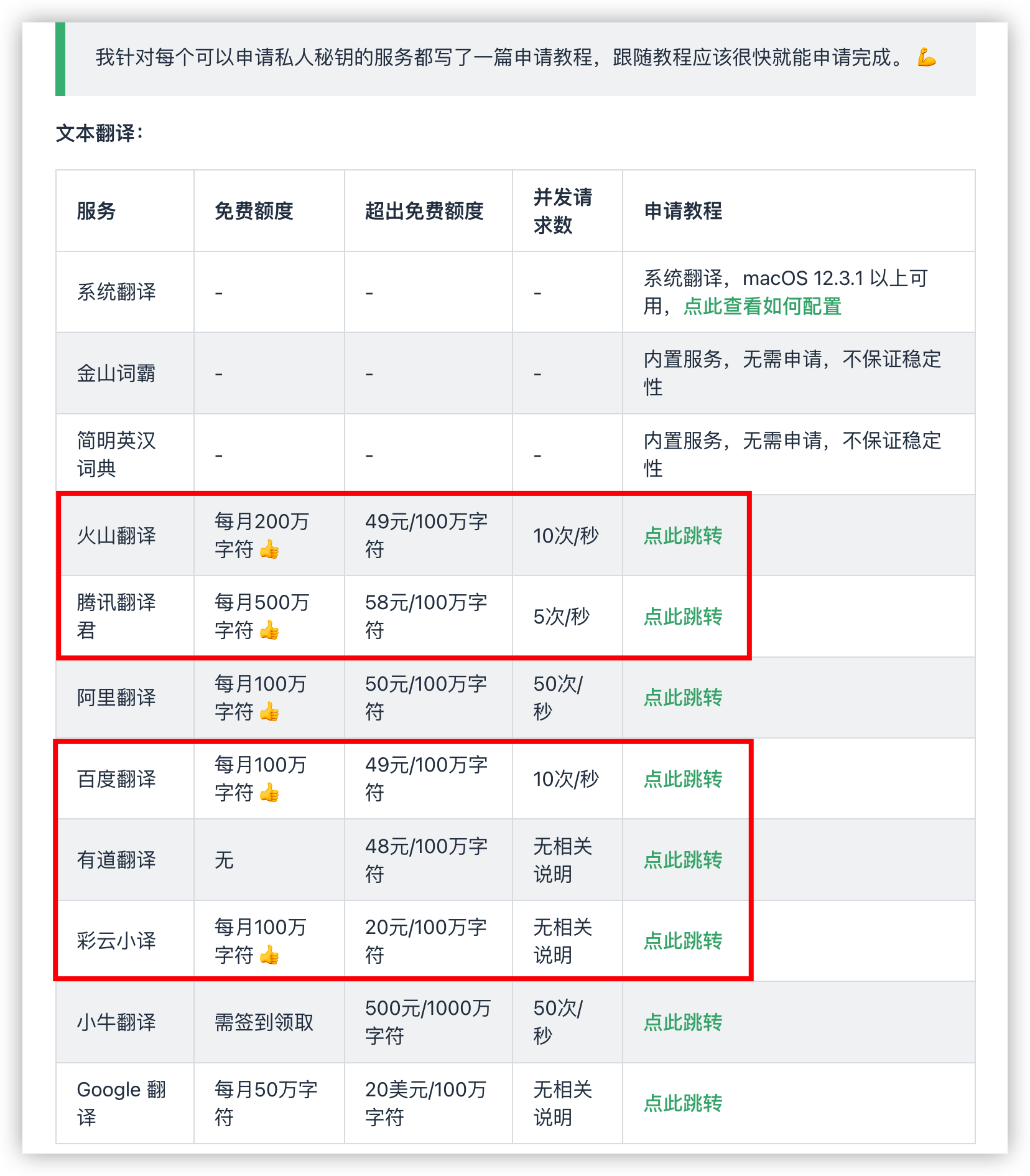
For ease of use, we provide built-in API credentials (AppID and AppKey) for translation services. However, these shared services have rate limits. If too many users access them simultaneously, responses may slow down or fail. Therefore, for the best experience, we highly recommend applying for your own dedicated API credentials and updating them in the Preferences page.
Don't worry, these services offer generous free tiers that are more than enough for personal use.
The following tutorial (from Bob) will guide you through the application process step by step.
- Youdao Translate: Select
text translationandspeech synthesis. (You will receive ¥50 experience fund) - Baidu Translate
- Tencent Translate
- Volcano Translate
- Caiyun Translate
- DeepL
Acknowledgements
- This project was inspired by raycast-Parrot and Bob, and its initial version was based on raycast-Parrot.
Easydictimproves upon the original project by refining the UI, adding practical new features, removing overly complex operations, and heavily optimizing performance. - The OCR Translate feature is based on ScreenOCR.
- Special thanks to @aidevjoe for the PR: feat: add OCR recognition, the original macOS implementation.
- Special thanks to @duckieeeduck for the original Windows implementation (raycast/extensions#30884).
- macOS
- Windows